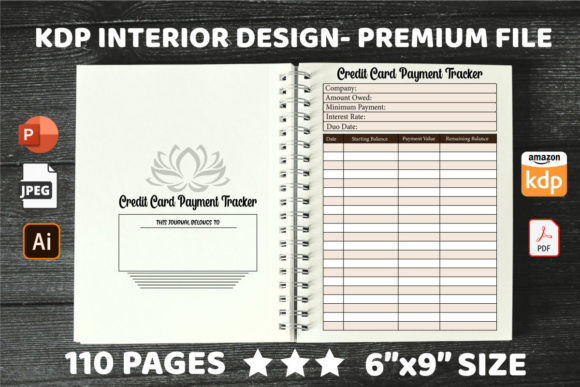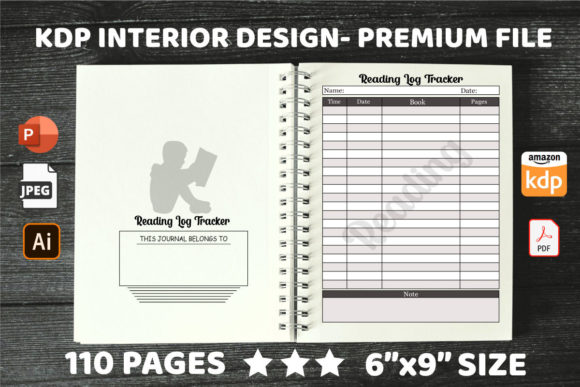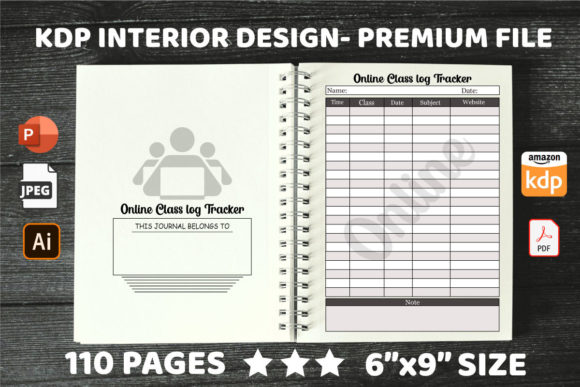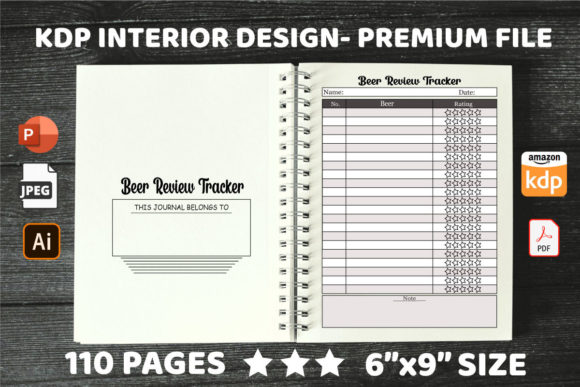
KDP Interiors Mileage Log Tracker: Optimizing Your 6x9 No-Bleed Template for Success
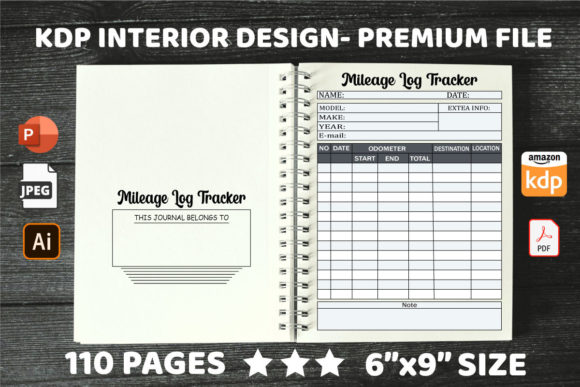
Creating a functional and profitable low-content book requires more than just uploading a generic file; it demands precision in design and usability. The KDP Interiors Mileage Log Tracker serves as an essential tool for freelancers, small business owners, and gig workers who need to maintain accurate records for tax deductions and expense tracking. When formatted correctly at 6″ x 9″ inches with 110 pages and no bleed settings, this interior provides a professional foundation that meets Amazon’s strict printing guidelines while offering genuine value to the end user. However, many creators overlook critical technical details during the selection and editing process, leading to rejected manuscripts or poor customer reviews.
Understanding the specific parameters of this tracker is the first step toward avoiding costly errors. A 6x9 trim size is the industry standard for portable logbooks, fitting easily into vehicle glove compartments or center consoles. The 110-page count offers substantial utility without making the spine too thick for perfect binding. Most importantly, the "no bleed" specification simplifies the design process but introduces its own set of constraints that must be respected to ensure text and tables do not get trimmed during production.
Common Pitfalls with No-Bleed Dimensions
The most frequent mistake creators make when working with a no-bleed KDP Interiors Mileage Log Tracker is misunderstanding safety margins. In a no-bleed layout, all content must remain within a designated safe zone. If your table lines, headers, or entry fields extend too close to the edge of the page, they risk being cut off or appearing inconsistent after trimming. This is particularly problematic on the gutter side (the inner margin where the book binds).
Many beginners assume that because the file is labeled "no bleed," they can utilize the full 6x9 canvas. This is incorrect. You must account for the gutter margin, which increases based on page count. For a 110-page book, failing to adjust the inner margin results in text disappearing into the binding crease, rendering the mileage log difficult to write in. Always verify that the template you download includes pre-set guides for these margins. If you are editing in PowerPoint or AI, double-check that the master slide or artboard reflects the correct printable area rather than the full trim size.
File Format Selection and Editing Integrity
While having access to PDF, AI, and PPT files offers flexibility, choosing the wrong format for your skill level can compromise the final product. A common error is attempting to edit complex vector tables in PowerPoint when the original design was created in Adobe Illustrator. PPT is excellent for text-based changes and simple layout adjustments, but it often struggles with precise anchor points and grouped vector elements. Forcing edits in an incompatible program can cause table alignment to shift by fractions of an inch, creating a visually sloppy interior that looks unprofessional in print preview.
Conversely, relying solely on a flattened PDF limits your ability to customize the tracker effectively. While PDFs are great for final upload, they are poor for structural editing. If you need to change column widths to accommodate longer location descriptions or add a notes section, start with the source AI or PPT file. Editable source files preserve the layer structure, allowing you to modify specific elements without accidentally moving background grids or header graphics. Always save your customized version under a new filename to preserve the original master template as a backup against corruption.
Usability Over Aesthetics in Logbook Design
A beautifully designed mileage log that is impractical to use will inevitably receive negative feedback. Creators sometimes prioritize decorative elements over functional spacing, resulting in writing lines that are too narrow or columns that are too cramped. Remember that the target audience for a KDP Interiors Mileage Log Tracker is often writing by hand in varying conditions, such as inside a parked car or at a job site.
Before finalizing your 110-page interior, conduct a practical usability test. Print a single sample page at actual size and attempt to fill it out with a standard ballpoint pen. Check if the font size for headers is legible without squinting. Ensure there is adequate vertical space between rows for handwriting; standard 8mm or 9mm row height is usually ideal for logbooks. If the rows are tighter than 7mm, users will struggle to keep their writing neat, leading to frustration. Additionally, verify that the date, destination, purpose, and odometer columns are proportioned logically. A common oversight is making the "Purpose" column too narrow, forcing users to abbreviate excessively and potentially compromising the validity of their tax records.
Ensuring Consistency Across 110 Pages
Maintaining consistency throughout a 110-page document is challenging but necessary. Inconsistencies in header placement, footer positioning, or table grid thickness can occur when pages are duplicated manually rather than using master templates or automated tools. These subtle shifts become glaringly obvious in the printed book and signal low quality to buyers.
- Use Master Slides/Artboards: Apply global changes to headers and footers through the master template feature in PPT or AI to ensure every page aligns perfectly.
- Check Page Breaks: Verify that no content spans awkwardly across pages. Each log entry table should start fresh or continue cleanly without splitting individual rows.
- Validate Margins Periodically: After bulk duplicating pages, randomly sample pages 10, 50, and 100 to confirm that margins have not drifted due to software glitches.
- Review Metadata Fields: If your tracker includes introductory pages for personal info or annual summaries, ensure these unique pages align with the main log pages regarding outer margins.
Verifying Technical Compliance Before Upload
Even minor technical discrepancies can trigger Amazon KDP’s automated review system, delaying publication. When working with editable files like PPT or AI, exporting to PDF requires specific attention to detail. A frequent issue arises from transparency effects or RGB color profiles left in the document. KDP interiors for black-and-white printing should ideally be in grayscale or CMYK to prevent unexpected contrast shifts. Transparent drop shadows on table headers, while attractive on screen, can rasterize poorly during conversion, creating pixelated artifacts in print.
Always flatten your final PDF export to embed fonts and lock layers. Unembedded fonts are a primary cause of rejection or substitution warnings. Furthermore, confirm that your exported PDF dimensions match exactly 6x9 inches. Some design software adds extra padding or crop marks during export; these must be disabled. The uploaded file should be the exact trim size with no bleed, matching the metadata selected in your KDP dashboard. Taking ten minutes to validate these specifications saves days of revision cycles.
Customization Strategies for Market Differentiation
Since many sellers use similar base templates, thoughtful customization is key to standing out. Rather than simply changing the cover, consider how you can adapt the KDP Interiors Mileage Log Tracker to serve niche audiences better. For example, real estate agents might benefit from additional columns for property addresses and client names, while delivery drivers might prioritize route numbers and package counts. Using the editable AI or PPT files allows you to restructure the table layout to fit these specific needs without redesigning from scratch.
However, avoid over-customizing to the point of clutter. Every added field reduces available writing space. Strike a balance by providing optional sections or including supplementary pages at the back for detailed notes or monthly summaries. This approach maintains the core functionality of the standard mileage log while adding perceived value. Always test your modified layout against the original safety margins to ensure your customizations haven’t inadvertently pushed content into the non-printable zone. By combining technical precision with user-centered design adjustments, you create a superior product that serves both the platform’s requirements and the customer’s practical needs.